

1
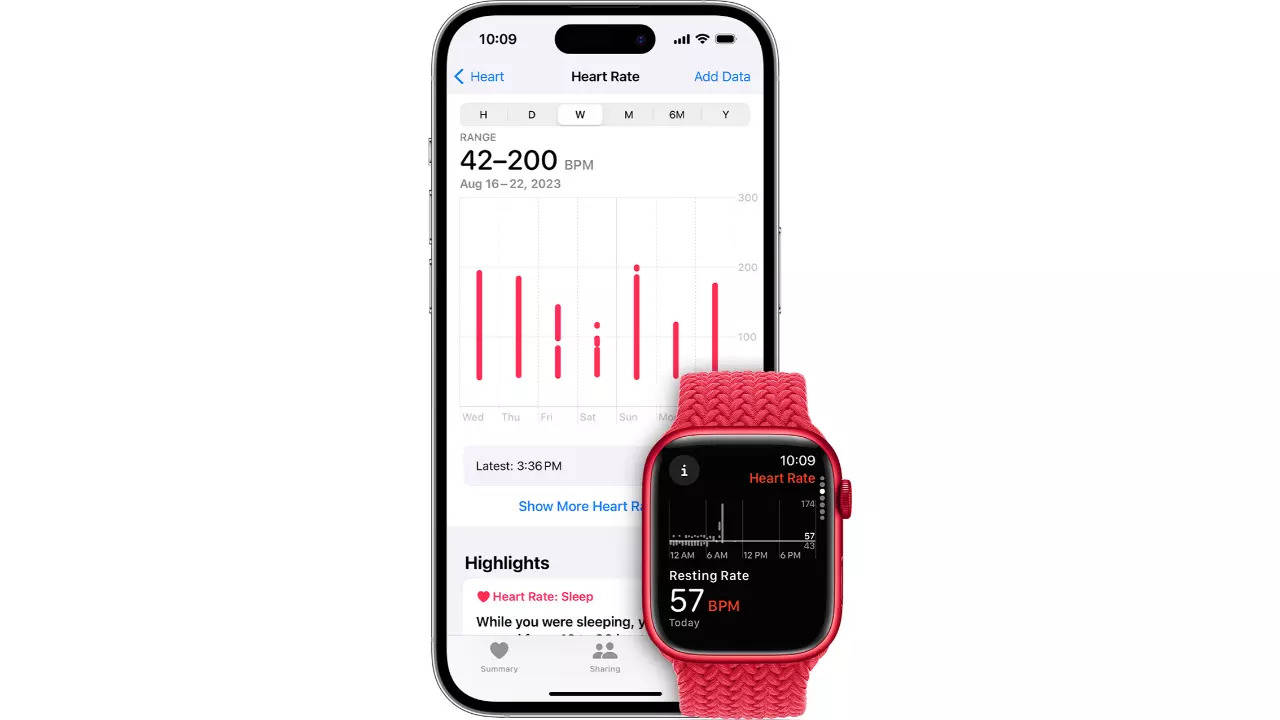
Apple Watch offers loads of health and fitness features. This wearable is capable of recording important health-related data that users can access any time. The smartwatch can track heart history across various scenarios including resting, walking, workouts as well as heart-rate variation (HRV) across days, months and years.
The Apple Watch takes heart rate readings in the background (to measure resting and walking heart rates) even when users are not tracking a particular workout.All this data recorded by the watch is also stored on your iPhone. This makes it easier to share these readings with your doctor. So, if you own an Apple Watch and want to know a detailed history of your heart rate, here’s step-by-step guide on how to do it:How to check heart rate history on Apple Watch
The Apple Watch takes heart rate readings in the background (to measure resting and walking heart rates) even when users are not tracking a particular workout.All this data recorded by the watch is also stored on your iPhone. This makes it easier to share these readings with your doctor. So, if you own an Apple Watch and want to know a detailed history of your heart rate, here’s step-by-step guide on how to do it:
How to check heart rate history on Apple Watch
- Open the Heart Rate app on your Apple Watch (heart icon) to check daily data
- Here you can see your current heart rate
- Swipe or scroll down with the Digital Crown
- Now, you can see your resting rate, walking average, workout heart rate and heart rate post-workout data (if you’ve done a workout recently)
How Apple Watch records heart rate in the background
In a support document, Apple explains: “Apple Watch measures your heart rate throughout the day when you’re still, and periodically when you’re walking (Apple Watch Series 1 or later). Since Apple Watch takes these background readings based on your activity, the time between these measurements will vary. Apple Watch also calculates a daily resting rate and walking average by correlating background heart rate readings with accelerometer data when sufficient background readings are available.”
How to check heart rate data on iPhone
iPhone users can check their heart rate history captured by their Apple Watch on their smartphones. Users can also get more data on their iPhones:
- Open the ‘Health’ app on your iPhone
- Tap the ‘Browse’ tab in the bottom right corner
- Select the ‘Heart’ option
- On the main page, you can find various heart rate categories
- Tap on one of the categories that you want to see
- You can also change the data window between hourly, daily, weekly, monthly and yearly (H, D, W, M, Y) from the top
- At the bottom, you can find heart rate highlights and more information about each type of heart rate data
- You can also find more heart data like Cardio Fitness,
ECG results, blood pressure readings and low/high/irregular heart rate notifications further down in the main Heart section







