Apple is improving iPhone security and privacy with iOS 18. One of the valuable new features is the ability to require Face ID for individual apps as well as putting them in a hidden folder. Read along for how to lock and hide apps on iPhone in iOS 18.
In iOS 18, Apple’s native apps can be set with individual locks, and third-party apps can be locked and stored in a hidden folder on your iPhone.
For the greatest security and privacy, the data of apps that are locked and hidden will not show up in:
- Search
- Notifications
- Spotlight suggestions
- Siri suggestions
- Call history
- Maps routing suggestions
How to lock and hide apps on iPhone in iOS 18
- Make sure you’re running the iOS 18 beta on your iPhone (full guide)
- Long-press on an app
- Now tap Require Face ID (or Touch ID)
- Some Apple apps don’t offer this option such as Settings and Camera
- Tap Require Face ID again or when available Hide and Require Face ID
- The ability to lock and hide works with third-party apps for now, we’ll see if Apple expands it to native iOS apps which can just be locked at this time
- To view hidden apps, swipe from right to left to get to your App Library > swipe to the bottom
- Now you can tap the Hidden folder to use Face ID/Touch ID to see the apps
Here’s how it looks to lock and hide apps on iPhone in iOS 18:
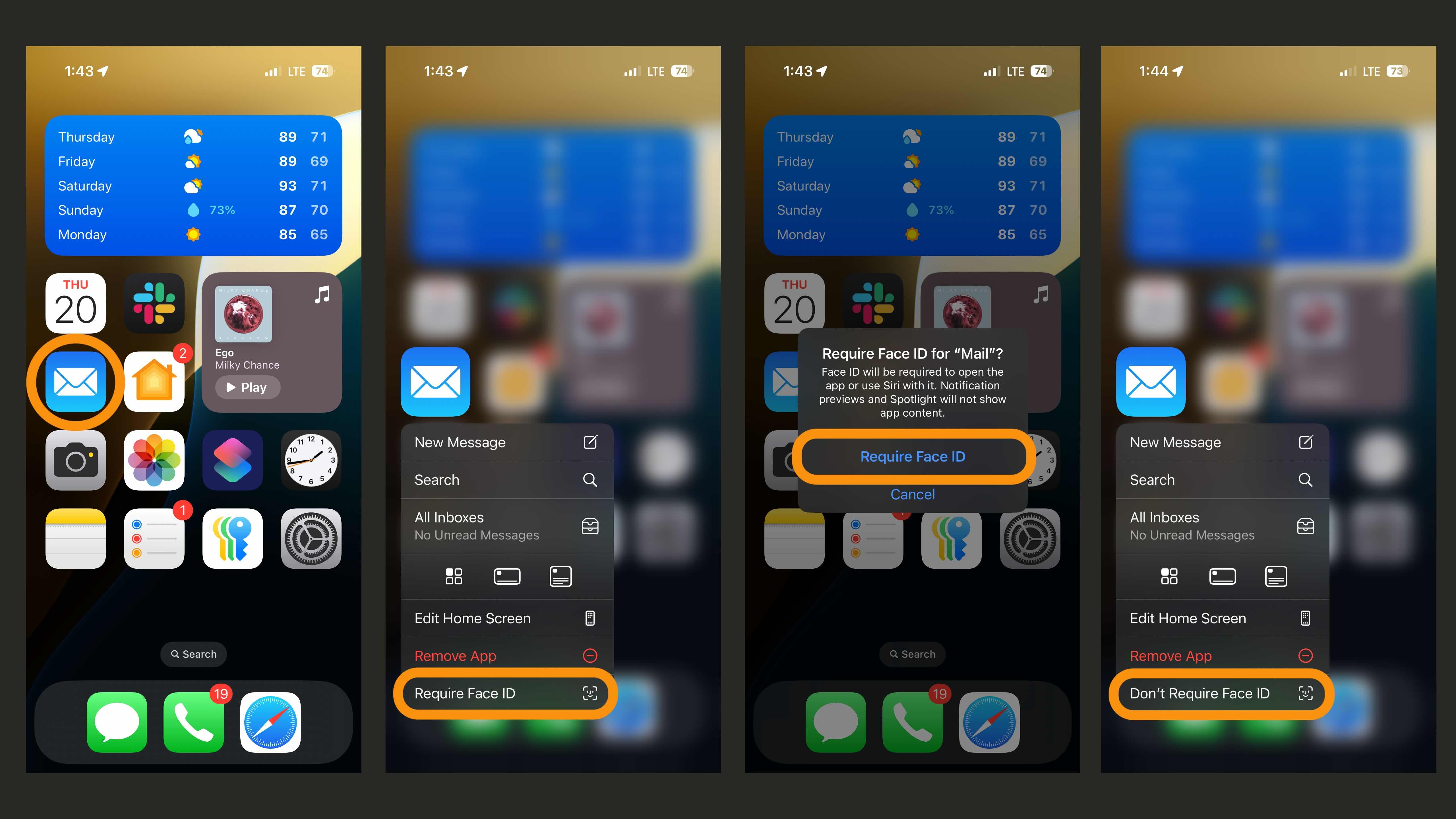
Above is how this looks with a native iOS 18 app. Repeat the same steps and choose Don’t Require Face ID to turn the lock off.
And here’s how it looks with a third-party app that you can lock and hide.
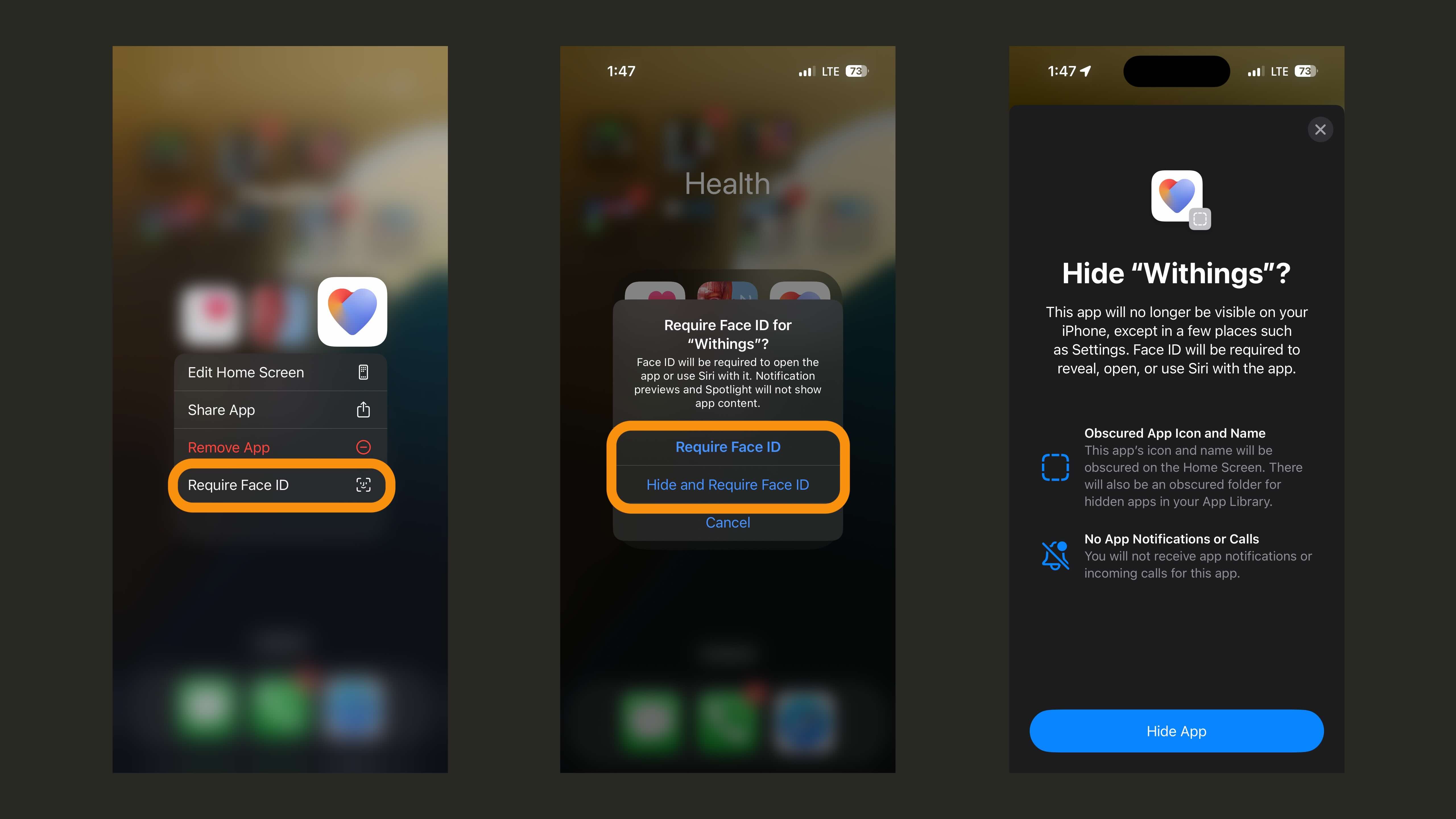
As Apple details, hiding an app removes it from your Home Screen. It is also not visible in your Hidden folder until you unlock it.
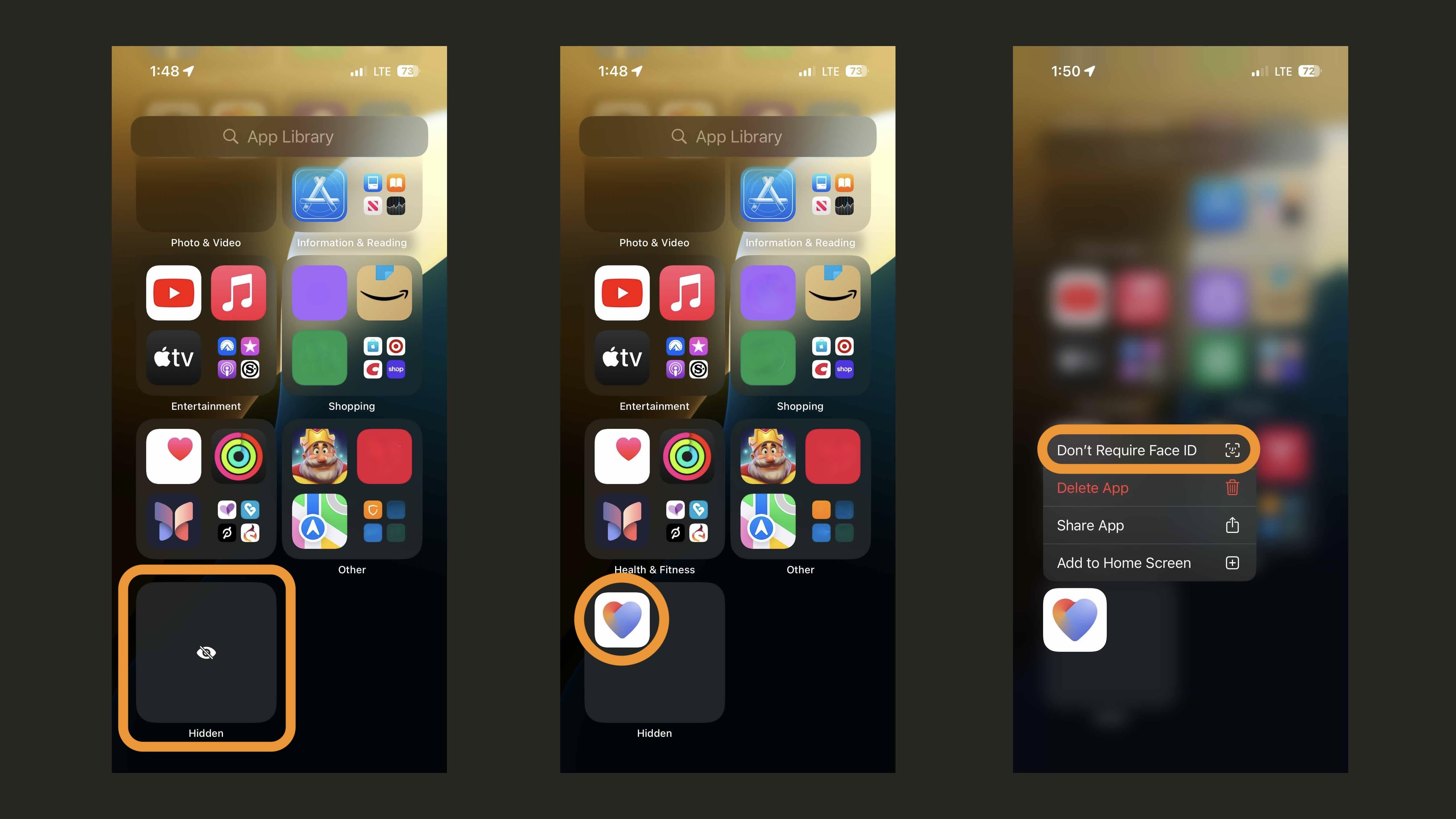
Long-press on an app in your Hidden folder and choose Don’t Require Face ID if you’d like to move it back to your Home Screen and unlock it.
Thanks for reading our guide on how to lock and hide apps on iPhone in iOS 18!
More on iOS 18:
FTC: We use income earning auto affiliate links. More.